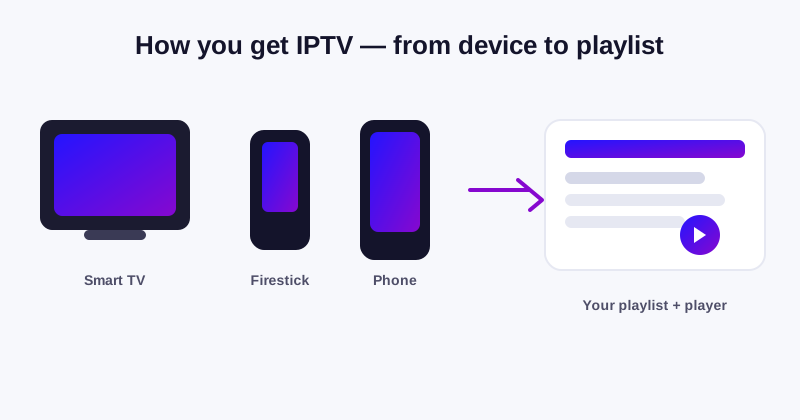
How do you get IPTV? It is one of the most asked questions we receive, and the honest answer is simpler than most people expect. You do not need a satellite dish, a new aerial, or a specialist box. You need an internet connection, a device you already own, a media player app, and a subscription to an IPTV provider.
This guide walks you through every step, from choosing a provider to watching your first channel — and it explains how to do it safely, legally and without wasting money.
What you need to get IPTV
Before you buy anything, gather the basic requirements. The good news is that the list is short.
- A broadband internet connection. For smooth viewing, aim for at least 8 Mbps. For 4K, a faster connection (25 Mbps or more) is better.
- A device to watch on. This can be a Smart TV, an Amazon Firestick, an Android TV box, a laptop, a desktop PC, a tablet, or a phone.
- A media player app. The most popular are TiviMate, OTT Navigator, IPTV Smarters, VLC and Kodi. Many are free, and premium versions come bundled with most good subscriptions.
- An IPTV subscription. This is the service that supplies the channel list, the on-demand library and the login details.
That is genuinely everything. If you have a device that can run apps and you are connected to the internet, you already own 80% of what you need.
Step 1: Choose a provider you can trust
The most important decision is not which app to install — it is which provider to subscribe to. A great provider makes setup effortless; a poor one makes every evening a struggle. How do you get IPTV from a provider that will actually deliver? Look for these signs:
- A real website with clear pricing, terms, a privacy policy and a DMCA notice. Legitimate providers publish these.
- Active customer support that answers quickly on WhatsApp or Telegram — not just an automated ticket queue.
- Load-balanced servers and a stated uptime guarantee, because a provider that cannot handle peak demand will buffer during live football and big events.
- A free trial. Any confident provider will let you test the service for a day before you pay a single pound.
- Clear device guidance and an installation guide, because setup should never be a mystery.
We would always advise you to take the free trial first. It costs you nothing, and it lets you judge the picture quality on your own connection before committing.
Step 2: Pick your player app
The player is the app that reads your playlist and displays the channels. Think of it as the remote control for your IPTV service. The two most popular players in the UK are:
- TiviMate. Favourite on Android TV and Firestick. Beautiful interface, a proper TV guide (EPG), catch-up, and multi-playlist support.
- OTT Navigator. Powerful, fast, and packed with customization — great for power users who want fine control over categories and EPG.
Many providers, including UK IPTV Hub, include the premium versions of TiviMate and OTT Navigator free with every plan. Other capable players include IPTV Smarters, VLC and Kodi, which also run on desktop and mobile.
You do not have to pick a player before you subscribe — your provider will recommend one and send setup steps for your exact device. But knowing the names helps you feel at home.
Step 3: Order and receive your login details
Once you have chosen a provider, ordering is usually instant. At UK IPTV Hub, you message us on WhatsApp or Telegram, choose a plan, and we send back:
- Your unique login credentials (username and password),
- Your playlist URL or download,
- A setup guide for your specific device.
This usually happens within minutes. Because there is no automated checkout to fight with, you get a real person confirming everything and answering any questions before you pay.
Step 4: Set up on your device
The exact steps vary by device, but the principle is always the same: open your player, add your playlist, and wait for it to load. Here is how it works on the most common devices.
On a Firestick or Android TV
1. Install your player app (TiviMate is a great choice) from the app store or via the Downloader app.
2. Open the app and choose "Add playlist".
3. Enter the playlist URL and your login credentials exactly as your provider sent them.
4. Let the playlist load — a large list can take a minute or two the first time.
5. Open a channel. If the channel icons and EPG appear, you are done.
On a Smart TV (Samsung or LG)
Most smart TVs let you install an IPTV player directly from their app store. Search for TiviMate, IPTV Smarters or a compatible player, install it, and add your playlist the same way. Alternatively, you can use an Android box or Firestick connected to the TV.
On Windows, Mac or Linux
Install a desktop player such as IPTV Smarters, VLC or Kodi. Then open your playlist file (often an M3U file) or paste the playlist URL. The channels will appear in the player's list.
On a phone or tablet (Android and iOS)
Install an IPTV player from the Play Store or App Store, add your playlist URL and login, and start watching. This is ideal for watching on the go or while your TV is occupied.
Step 5: Explore your playlist and EPG
Once your playlist is loaded, take a few minutes to get your. Most services organise channels into categories: Sports, Movies, Series, News, Kids, Documentary, Music, and local channels. The Electronic Programme Guide (EPG) shows what is on now and next, and lets you schedule or catch up where supported.
Spend the first evening browsing categories, marking favourites, and checking that the channels you care about most — your football team, your news station, your favourite film channel — all work cleanly.
Common setup problems and how to fix them
If something does not work first time, do not panic. These are the most common issues and their fixes.
- The playlist will not load. Double-check you typed the URL and credentials exactly, with no extra spaces. Try again after closing and reopening the app.
- Channels buffer or freeze. Check your internet speed and restart your router. If it persists, your provider may be overloaded — a good provider will fix this and tell you honestly.
- No channel icons or guide data. Some playlists take time to sync, especially the first time. Allow a minute, then refresh.
- "Authorization" or "login" errors. This is often your internet provider throttling or blocking the stream. A VPN usually solves it — and your provider should have a guide for this.
If you are ever stuck, message support. A live person should be able to sort you out in minutes, which is exactly the level of service you should demand.
How long does it take to get IPTV working?
For most people, the whole process takes about fifteen minutes from ordering to watching the first channel. The trial setup takes a few minutes. Adding the playlist takes another couple. The slowest part is browsing your new library — because with 35,000+ channels and 130,000+ on-demand titles, there is a lot to explore.
Should you start with a free trial?
Yes. Every serious provider offers a trial, and you should always take it. A trial lets you confirm three things before you spend money: the picture quality on your connection, the reliability during busy times, and the speed of support. If the trial impresses you, you can upgrade to a full plan with confidence. If it does not, you have lost nothing but a few minutes.
Is getting IPTV in the UK legal?
The technology itself is legal. However, you should always choose a provider that holds the rights to what it streams. Avoid services that offer premium channels at impossibly low prices — those are almost always unauthorised, and using them carries real risk. Legitimate providers publish clear terms and policies, have a returnable support team, and are happy to tell you what they do and do not host. For a deeper dive, read our guide on whether IPTV is legal in the UK.
What does an IPTV subscription actually include?
When you subscribe, you are not buying hardware or paying per channel. You are renting access to a playlist and a server that keeps it updated. Most good subscriptions include live channels across sports, movies, series, news, kids, documentary and music, plus an on-demand library of films and full series.
They also typically include an Electronic Programme Guide (EPG) so you can see what is on now and next, channel icons, and support for multiple simultaneous connections so your household can watch different things at once.
The channel list is not static. Good providers continuously add and maintain channels, so the line-up grows and improves while you are subscribed. That is one reason to choose a provider that has been running for a while — experience tends to mean a healthier, better-maintained service.
Finally, remember that the quality you get depends on three things working together: your internet speed, the device you watch on, and the provider's servers. If all three are in good shape, HD and 4K playback is straightforward.
Frequently asked questions about getting IPTV
Do I need a special box to get IPTV?
No. Any device that can run apps — smart TVs, Firesticks, Android boxes, phones, tablets and computers — can play IPTV.
Can I watch IPTV on more than one TV?
Yes. Most subscriptions include several simultaneous connections. At UK IPTV Hub every plan includes three, so you can watch on three screens at once.
Is a VPN required for IPTV?
Not always, but it helps. Some UK internet providers throttle or block IPTV streams. If you see authorization errors or buffering, a VPN usually fixes it.
How do I get IPTV on my Firestick?
Install a player like TiviMate, add your playlist URL and login, and start watching. The full walkthrough is in the installation guide section above.
The bottom line
So, how do you get IPTV? In short: connect your device to the internet, install a player, choose a trustworthy provider, and load your playlist. It genuinely is that simple. The key is to pick a provider that offers a free trial, real support, and reliable servers — then everything else falls into place quickly.
If you would like to try it yourself, ask us for a free instant trial. We will set you up on your own screen within minutes, and you can decide for yourself whether it is the right fit.